
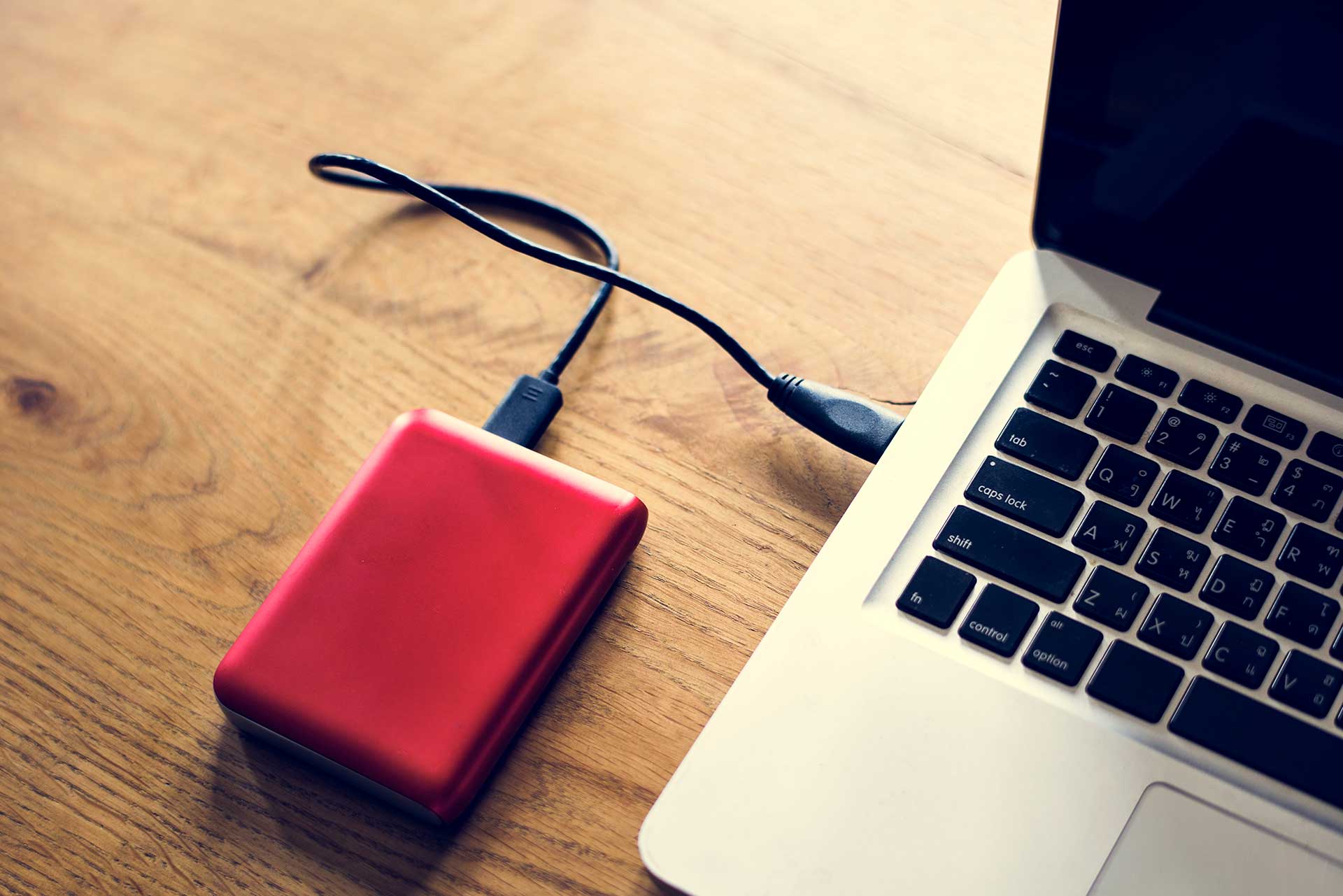
External hard drive not recognized: what to try before recovery
An external hard drive not recognized by your computer is one of the most common problems people bring us from Toronto and across the GTA. In most cases, the files are still on it. The risk is what happens next, because a few popular "fixes" can turn a simple repair into a hard recovery. Here's what's safe to try, what to avoid, and when to stop.
Data Rescue Labs has been recovering data in Mississauga for 16+ years, across more than 6,000 cases. If the checks below don't bring your drive back, our evaluation is free, you get a fixed quote before any work starts, and if we can't recover your data, you don't pay.
Start with checks that can't hurt the drive
The rule is simple: anything that only looks at the drive is fine, and anything that formats it, initializes it or "repairs" it is not. Most external hard drive not recognized problems come down to a cable, a port, power or a setting.
These steps cover external hard drives and SSDs. For USB sticks and memory cards, see our flash and USB recovery page.
Listen to the drive
Plug it in and listen. A healthy drive spins up with a soft whir and maybe a click or two. Repeated clicking, beeping, buzzing or grinding means a mechanical problem, so unplug it now and skip to when to stop.
External SSDs are silent, so if yours is one, see our guide to SSD data recovery.
Swap the cable and the port
A worn cable is one of the most common causes. Try another one, plugged straight into the computer rather than a hub, dock or monitor.
If the plug on the drive feels loose, or only works at an angle, stop wiggling it. The connector is probably breaking away from the circuit board, and forcing it can tear it off.
Check the power
Desktop drives (the bigger kind with their own power adapter) need that adapter plugged in and working. Use only the original adapter, since the wrong voltage can burn out the drive's board.
Portable drives run on power from the USB port. An external hard drive not working on a laptop but fine on a desktop often isn't getting enough, so try another port or a powered hub.
Try another computer
Restart once, then try a second computer, ideally a different brand or operating system. If an external drive not recognized on your laptop works there, the problem is your computer, not the drive. If it fails everywhere, it's the drive or its case.
External hard drive not recognized in Windows
An external hard drive not showing up in File Explorer may still be listed in Disk Management. Right-click the Start button, choose Disk Management and look for a disk that matches your drive's size (a 2 TB drive shows as about 1,863 GB).
It's the best single check for an external hard drive not recognized in Windows. Here's what each result means:
- Listed, but with no drive letter. Right-click the volume, choose Change Drive Letter and Paths, then Add. It only changes how Windows labels the drive, so it's safe (see Microsoft's guide to changing a drive letter).
- "Not Initialized" or "Unallocated". Stop. Initializing it or creating a new volume writes over the map that tells Windows where your files are.
- "RAW", or a prompt to format the disk. Click Cancel. Formatting gives you an empty drive, not a fixed one.
- "No Media", or no size at all. Windows sees the USB chip in the case but not the disk inside. That's a hardware fault.
- Not listed at all. In Device Manager, choose Action, then Scan for hardware changes. If it still doesn't appear on any computer, the problem is physical.
External hard drive not recognized on a Mac
An external hard drive not recognized on a Mac is sometimes just hidden. In Finder, open Settings (Preferences on older macOS) and tick External disks under General and Sidebar. Then open Disk Utility and choose View, then Show All Devices.
- Listed, but the volume is greyed out. Select it and click Mount once. If it won't mount, skip First Aid on a drive that holds your only copy.
- "The disk you attached was not readable by this computer." Click Ignore, not Initialize.
- Not in Disk Utility at all. Hold Option, click the Apple menu, open System Information and choose USB. If the drive isn't listed there either, the problem is the drive, its case or the connection.
Encrypted drives and format mix-ups
Sometimes an external hard drive not recognized is working fine, and the computer just can't read the way it was set up. A Mac-formatted drive (APFS or Mac OS Extended) won't open on Windows, which may offer to format it, so click Cancel. A Windows drive (NTFS) opens on a Mac but can't be saved to, as Apple explains, while exFAT drives work on both.
Encryption can look like failure, too. A BitLocker drive asks for its password or recovery key, which may be saved in your Microsoft account. Many Western Digital drives also encrypt everything at the small board inside the case, often with no password set, so a bare drive pulled from its case shows only scrambled data. If you've already opened the case, keep every part.
What not to do while you troubleshoot
With an external hard drive not recognized, it's tempting to try everything online. A lot of the extra damage we see comes from well-meant fixes, so avoid these:
- Don't format or initialize it, even when your computer suggests it.
- Don't run CHKDSK, First Aid or "repair" tools. They write to the drive and can push a weak one into full failure.
- Don't install recovery software on it, or save recovered files back onto it.
- Don't keep plugging in a drive that clicks or beeps. Each power-on can do more damage.
- Don't swap in a circuit board from an identical drive. Each board holds settings matched to its own drive.
- Don't freeze, tap or shake it.
When to stop and call a lab
An external hard drive not recognized after all of these checks needs a lab, not more attempts. Every extra try on a failing drive lowers the odds of getting everything back. Stop and call if:
- The drive clicks, beeps, buzzes or grinds.
- It was dropped or knocked over, especially while running.
- It isn't detected on any computer, even with a good cable and power.
- Disk Management or Disk Utility shows the wrong size, "No Media" or "Not Initialized".
- It shows up but freezes the computer or copies files at a crawl.
- It got wet, or you notice a burning smell.
A real GTA example
A small accounting office in Brampton brought us an external hard drive not recognized by any of their computers after someone tripped over its cable. It would connect for a second if the cable was held at an angle, then drop off. They tried a new cable and a second laptop, then stopped, which was the right call.
The USB connector had cracked away from the drive's board, and on that model the encryption sits on the same board. We rebuilt the connector, imaged the drive and returned every client file, about 900 GB, in three business days. They paid the fixed quote they approved on day one. (Details changed for privacy.)
Why local and forensic-grade matters in the GTA
If the safe checks leave you with an external hard drive not recognized anywhere, you want a lab that won't make things worse. Ours is in Mississauga, near Highway 401 and Hurontario Street, so a drive from Toronto, Brampton, Vaughan or Oakville can reach us the same day. Our clean room is on site, so nothing ships out of province.
We treat every drive like forensic evidence: we make a full copy (an image) first, then recover your files from the copy. Our hard drive recovery team handles everything from broken ports to clicking drives, and our micro-soldering bench repairs boards and connectors like the one above.
If the files could end up in a legal or workplace dispute, tell us up front and we'll document a full chain of custody. Our examiners are certified by the International Society of Forensic Computer Examiners (ISFCE), and our work is trusted by the Toronto Police, the Ministry of the Attorney General and Rogers.
Frequently asked questions
Can data be recovered from an external hard drive not recognized by any computer?
Usually, yes. An external hard drive not detected anywhere has normally failed in one part, such as the USB board, the read heads or the firmware, while the files are often untouched. Stop testing it and have it checked.
Is it safe to run CHKDSK or First Aid on it?
Not if the files matter. Both tools write to the drive, and on a failing drive that can make recovery harder or impossible. Get the files off first, then repair the drive if you still want it.
Can I take the drive out of its case?
Sometimes, but it's risky. Many portable drives have the USB port built into the drive's own board, so there's no standard connector inside. On many Western Digital models, that board also handles encryption.
How much does recovery cost in Toronto?
It depends on what failed. A broken connector costs far less than new read heads fitted in a clean room. Our guide to data recovery cost explains what changes the price, and you get a fixed quote after a free evaluation.
How long does recovery take?
Our evaluation usually takes 24 to 48 hours. After you approve the quote, most physical recoveries take 2 to 5 business days. On a deadline? Tell us when you call.
Drive still not showing up? Get a free evaluation
If the safe checks didn't bring your drive back, stop using it and let us take a look. The evaluation is free, you get a fixed quote before any work starts, and nothing goes ahead without your approval. If we don't recover your data, you don't pay.
Call 1-416-238-1232 or read more about our hard drive recovery service.